- CD Installation Instructions.
- How do I set up dial-up networking to work with Info-Ed without a CD?
- What are the DNS numbers for Info-ed to put in my dial-up network settings?
- What do I put in my email for the incoming and outgoing mail servers? How do I set up E-Mail boxes with Microsoft Outlook Express?
CD Installation Instructions
- If you have not already spoken to a sales person and filled out the forms, call us at one of these numbers, so that we can set you up in the system. Insert CD into your computer system CD Reader, if the CD does not automatically start, proceed to step 6. Click on “Info-Ed Unlimited Internet Services” or "Start software installation."
- Select Info-Ed Unlimited Internet Services and/or select the Telephone Service provider area that you are located in.
- Click “I accept.” Enter your Username that you gave to us when you called or filled out the form. Click Next. Enter your Password that you gave us when you called or filled out the form. You must enter it in both boxes exactly the same. Click Next. Enter your real name. Click Next. Enter your Organization (this step is optional). Click Next.
- Enter any extra dialing commands that you know you need. If you are not sure about anything in this step, DO NOT change anything and click Next.
- If everything is ready on your computer for the internet, you should get a confirmation that the “installation completed successfully.” Once finished, you can take the CD out or explore some of the other programs provided on the CD.
- If the CD started automatically, you are finished. If it did not automatically start…Double Click “My Computer” on your Windows Desktop.
- Locate the Icon that looks like a CD Rom disc. It should say INFOED and may have a D: or another letter beside of it. Double click on the icon.
- Locate the folder icon that says “Dialup” and double click on it.
- Now there are two files that are of concern to you in this folder. The Info-Ed67 is for Twin Lakes Telephone area customers. The InfoEd70 is for North Central telephone area customers. Double click on the one that corresponds to the area you live in and proceed to STEP 2 above.
- Once finished, you can take the CD out or explore some of the other programs provided on the CD.
The CD automatically sets up Internet Explorer and Netscape to work with our service. Outlook Express is the email client that it sets up. Use Outlook Express and check your email with us regularly (even if you have a hotmail, yahoo, or other email) because we send out maintenance notices, bills, new virus information, etc… to you by email that must be checked using Outlook Express. Also, check our homepage occasionally. We post updates and what is going on with the service on it also!!!
How do I set up dial-up networking to work with Info-Ed?
If you used our CD or a file emailed to you when you joined our service, you will normally not need to repeat this.
| This is if you are
using Windows 95/98. For other versions of Windows, scroll down.
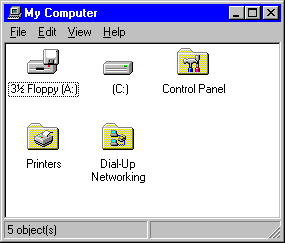
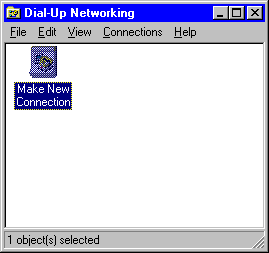
1. Double click your "My Computer" icon on your Win95/98 desktop. 2. Open up the "Dial-up Networking" folder by double clicking on it.
3. Click the "Make New Connection" icon.
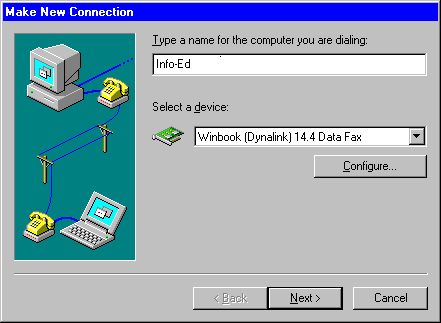
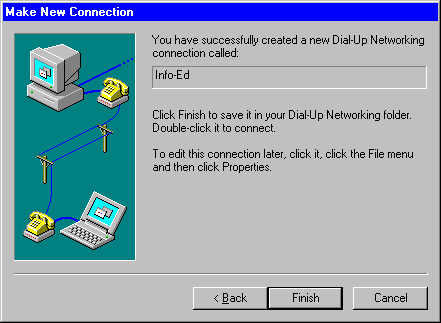
4. Enter a name for your new account.
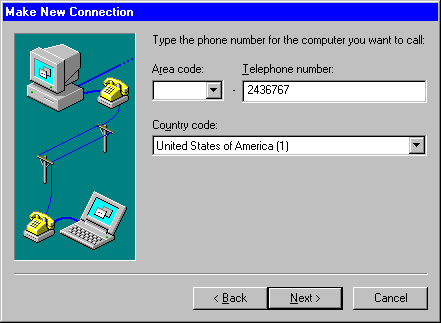
6. Click "next."
7. Click "Finish."
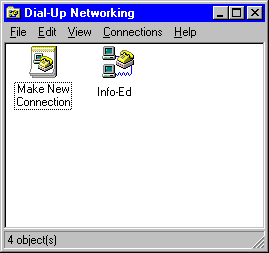
8. You should now have an icon in your "Dial-up Networking" folder called Info-Ed. (or whatever you named it). 9. Double click the icon you just created.
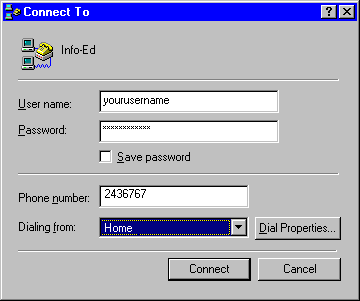
10. You should enter your user name that you created with us when you set up your account in the "User Name" field. 11. Enter your password in the password field. 12. Verify the telephone number is entered correctly.
Congratulations!! Once you click connect, you will be connected to our service!
For Windows ME, 1. Click Start, then control panel, dial-up networking. 2. Then follow the directions for win 95/98 starting with step 3. For Windows XP,
|
Back to Top
What are the DNS numbers for Info-ed to put in my dial-up network settings?
It is best to leave these on server assigned, but if you must use them:
-
Primary DNS === 12.153.10.2
-
Secondary DNS === 12.153.10.3
Back to Top
What do I put in my email for the incoming and outgoing mail servers?
-
POP server OR incoming mail server: mail.info-ed.com
-
SMTP server OR outgoing mail server: mail.info-ed.com
How do I set up E-Mail boxes with Microsoft Outlook Express?
- Open Outlook Express.
- Click TOOLS then ACCOUNTS.
- Click ADD then MAIL.
- Enter the name you like recipients of your mail to see.
- Enter your e-mail address <username>@info-ed.com.
- Our incoming mail server is a POP3.
- Our incoming POP server is mail.info-ed.com.
- Our outgoing SMTP server is mail.info-ed.com.
- Enter your username WITHOUT the @info-ed.com.
- Enter the password you selected when you signed up with Info-Ed.
- Make a friendly name for your e-mail account
- Select "Connect using my phone line"
- Select "Use an existing dial-up connection" and highlight Info-Ed.
- Congratulations! You should now be able to send and receive e-mail!